
How To Shop From a Screenshot on Android Phones
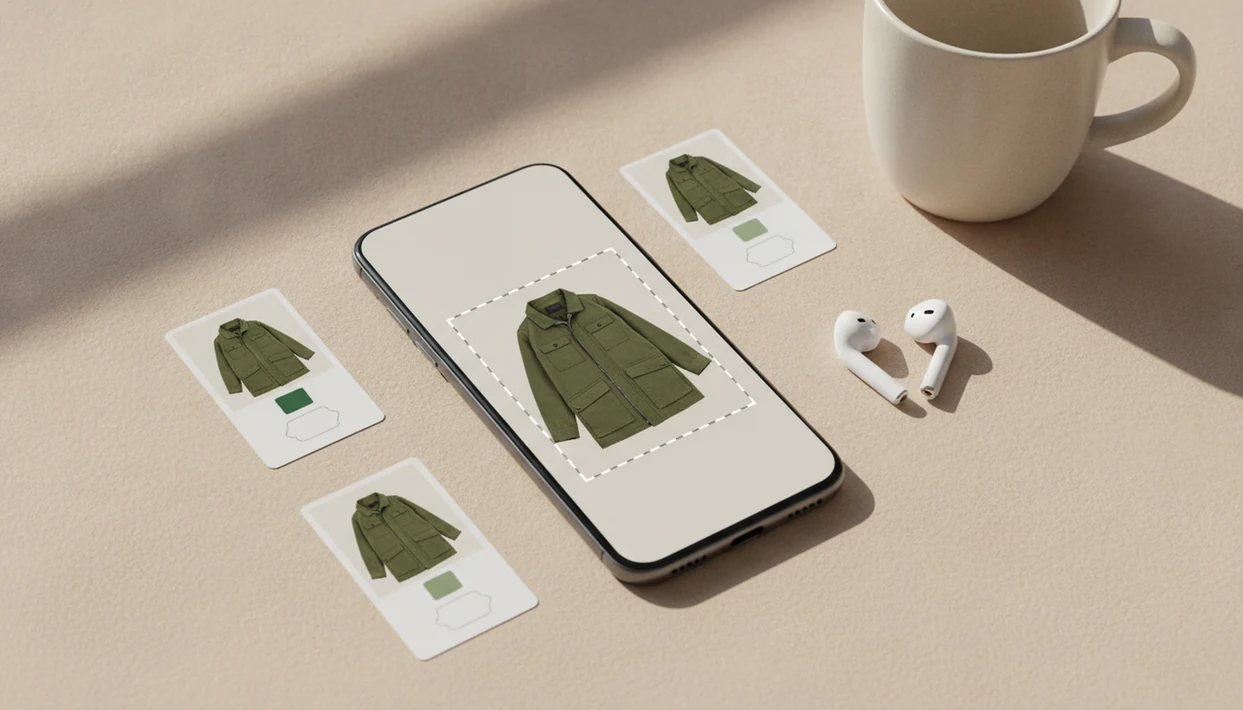


Get visual search on Android: AI Lens reverse image search. Also available: Invy shop by image for iPhone.
To learn how to shop from screenshot on Android, save the screenshot, crop it around the product, upload it to a visual shopping tool, then compare exact and similar matches across stores before buying. The key is using the screenshot as the search input instead of trying to guess product keywords.
> Android screenshot shopping is the process of using a saved phone screenshot as a visual search input to identify a product, find similar items, and compare prices online.
- Crop the screenshot tightly around one product before searching.
- Use a Shop By Image tool that accepts saved Android images to find exact matches, similar alternatives, and prices across stores.
- Check retailer, size, color, shipping, return policy, and stock before purchasing.
What Android Screenshot Shopping Means for Product Search
Android screenshot shopping means you start with a saved image from your phone, then use that image to search for a buyable product online. The screenshot might come from Instagram, Chrome, YouTube, a marketplace listing, a text message, or a paused video.
The goal is not just “find this picture.” The goal is to identify the exact product, or close visual alternatives, with retailer listings you can actually review. Same-looking is not always same-product, so the store page still matters.
A blurry Instagram Story screenshot saved before it disappears can still be useful if the item is visible enough. Invy is a shop by image app that identifies products from photos and compares prices across stores for online shoppers. In 2023, Statista reported that 41% of global internet users had used visual search tools while shopping online (Statista, 2023), so this is now a normal buying workflow, not a niche trick.
Android Screenshot Shopping Requirements Before You Start
Before you shop by screenshot Android-style, you need a usable image and a tool that accepts saved uploads. Most problems start before the search, usually with a cluttered or low-detail screenshot.
- Saved screenshot: Look in Google Photos, Samsung Gallery, Files, Downloads, Pictures, or a Screenshots folder.
- Clear product view: The item should not be hidden by captions, stickers, faces, heavy filters, or large interface buttons.
- Upload-capable tool: Use an image search tool or AI shopping assistant that can accept saved images from Android.
- Internet connection: You need live access to retailer listings, stock status, shipping details, and product pages.
- Phone readiness: Pew Research Center’s mobile fact sheet tracks U.S. smartphone ownership and platform use, including Android and iOS adoption (Pew Research Center).
A rain-speckled screen outside a store is enough to remind you. Save the screenshot first, then clean it up when you have a steadier minute.
Android Visual Search Matching Process Behind Screenshot Shopping
Screenshot shopping works by turning visible product details into searchable signals. The system reads shape, color, pattern, logo placement, silhouette, texture, and category, then compares those signals against product images in retailer or indexed shopping data.
That process often has two stages. First, the tool looks for an exact product match: same brand, same model, same color, same visible details. If that fails, it shifts toward similar options, such as a near-match bag, sneaker, lamp, or jacket.
Cropping helps because it removes noise. A white-background product photo is easy; a cropped creator mirror selfie is harder because the room, phone case, pose, and outfit all compete for attention.
Price comparison adds a second layer. It checks store, availability, shipping, variants, and stock after the visual match appears. McKinsey has reported that personalization can lift revenue by 5% to 15% and increase marketing-spend efficiency by 10% to 30% (McKinsey), which helps explain why retailers invest in AI-assisted shopping tools.
How To Use Shop by Screenshot Android Tools Step by Step
To shop from a screenshot on Android, move from image prep to match review before you think about buying. The fastest workflow is upload, review, compare.
- Open the screenshot in Google Photos, Samsung Gallery, Files, or Downloads.
- Crop tightly around the single item you want to buy, not the whole post or page.
- Upload or share the screenshot into Invy or another visual shopping tool that supports saved images.
- Review exact matches first, then similar alternatives if no exact listing appears.
- Compare price, retailer, shipping, size, color, returns, and stock before purchasing.
For Android screenshot shopping, cropping one item before upload is often easier than keyword search because the product name may be missing, misspelled, or never shown. A good AI shopping assistant and product finder app that identifies products from photos and compares prices across stores should deliver product matches and deal checks, not proof that an item is genuine.
Step 1: Save or Find the Product Screenshot on Android
“Where is my screenshot on Android?” Start in Google Photos or Samsung Gallery, then check Files, Downloads, Pictures, and the Screenshots folder if it is not visible.
Screenshots often come from Instagram, TikTok, Pinterest, Chrome, YouTube, messages, or shopping apps. If you paused a Reel too late and the item is half offscreen, take a new screenshot from a clearer frame. One-handed search on a crowded bus usually produces bad crops. Fix that before uploading.
Pew reported that 62% of U.S. adults had discovered or become interested in a product after seeing it in social media content. That explains why guides for shop from Instagram screenshot and TikTok screenshots exist at all. People see the product first, then try to find the name later.
If the post is still available, capture a second angle. A side view of a sneaker or chair can change the results.
Step 2: Crop the Android Screenshot Around One Product
The crop is the most important prep step. Crop around one hero item only, such as one jacket, bag, shoe, chair, lamp, beauty product, or gadget.
Faces, captions, backgrounds, overlays, and extra products can confuse visual search. A hoodie drawstring color matched onscreen may be useful; the creator’s room, comments, and reaction stickers usually are not. In Google Photos, Samsung Gallery, and most Android gallery editors, the crop tool is enough.
Make two versions if the context matters. Use an item-only crop to find the product, then save a full-outfit or full-room crop if you want similar styling. Tiny detail matters here.
For shoppers trying to find similar products by image, the broader crop can help with style. For exact product matching, the tighter crop usually wins because the tool sees fewer competing objects.
Step 3: Upload the Screenshot to a Visual Shopping Tool
You can upload or share the saved screenshot into a visual shopping tool where supported, then review product matches built from the image. The scan looks for products from photos and surfaces retailer listings, but it should not be treated as a guarantee for every screenshot.
| Match type | What it means | What to check |
|---|---|---|
| Exact match | Same-looking item, often same brand or model | Brand, SKU, color, material, size |
| Similar match | Close visual alternative when the original is unclear or unavailable | Shape, proportions, price, reviews |
| Dupe-style alternative | Lower-cost or inspired option with a similar look | Seller trust, materials, return policy |
Exact Match
Use exact match results when the screenshot shows clear branding, unique hardware, or a recognizable model.
Similar Match
Use similar match results when the right color appears but the wrong size, trim, or finish keeps showing up.
Full-Look Recreation
Use full-look recreation when you want the outfit or room feel, not one verified item. A free app to find products from screenshots can help, but still check every listing.
Step 4: Compare Android Screenshot Shopping Results Across Stores
The first visual match is not always the cheapest, safest, or most accurate listing. Treat the match as a lead, then compare the offer.
- Price: Check the item cost and whether a lower price has a sold-out badge beside it.
- Shipping: Add delivery fees before deciding which store is cheaper.
- Variant: Confirm size, color, material, model, and finish.
- Seller: Review seller reputation, return policy, and product page details.
- Stock: Tap into the retailer page because the tiny out-of-stock label may appear only there.
Shop By Image tools are useful here because they layer price comparison over visual discovery. Still, prices and availability can change quickly after results appear. For Android shoppers, a tool to compare prices from screenshot is most useful when it sends you back to the retailer page for the final check.
Common Android Screenshot Shopping Mistakes That Ruin Matches
Most failed screenshot searches come from weak inputs or overconfident review. Fix the image first, then question the result.
- The Busy Screenshot: Uploading the full screen, comments, captions, and all, makes the product harder to isolate.
- The Blurry Frame: Dark, compressed, filtered, or motion-blurred screenshots can shift the category or color.
- The Exact-Match Assumption: A similar handbag or sneaker is not automatically the same brand or SKU.
- The Skipped Seller Check: Size, color, seller reputation, and returns can matter more than the visual match.
- The One-Angle Problem: Multiple frames can show the logo, heel shape, chair legs, or lamp base better.
Screenshot shopping is not only for fashion. It can work for furniture, decor, beauty packaging, and electronics, with varying reliability. Desk lamp glare on packaging, for example, can turn a beauty product into a rectangle with no useful label.
Verification Checklist for Finding Product From Screenshot Android
Before buying, confirm the screenshot match against the retailer listing like a careful shopper, not a hopeful one. A product match is only worth using if the listing details hold up.
- Confirm shape, color, texture, hardware, pattern, and proportions against the screenshot.
- Check brand, model name, SKU, product description, material, dimensions, and reviews.
- Open at least two stores when possible to compare price and availability.
- Watch for suspiciously low prices, unknown sellers, copied images, and weak return policies.
- Save the original screenshot and candidate links before you buy.
Two retailer tabs open side by side can reveal the real deal fast. One may show free returns, while the other hides final shipping until checkout. For shoppers using an app to help me shop from screenshot, that final retailer review is still part of the job.
Understanding Results
Shop by image from an Android screenshot can turn a saved post, video frame, or browser image into a useful product finder, but it is not proof of an exact match. Use visual product search and price comparison to narrow options, then verify the retailer, size, color, stock, shipping, and returns before buying.
Invy works best when
- Cropped screenshots with one clear product in the frame
- Visible logos, patterns, shape, color, or packaging details
- Current products from major retailers or well-indexed stores
- Comparing exact matches against similar lower-priced alternatives
- Checking screenshots from Instagram, Chrome, YouTube, messages, or marketplaces
Invy may be less accurate when
- Blurry, dark, filtered, compressed, or low-resolution Android screenshots
- Screenshots with multiple products, cluttered backgrounds, or text overlays
- Vintage, handmade, altered, private-label, unreleased, or sold-out items
- Old social posts where price, stock, or availability may have changed
- Products sold only in another region or outside indexed retailer networks
FAQ
How do I shop from a screenshot on Android?
Open the screenshot in Photos, Gallery, Files, or Downloads, crop around one product, then upload it to an image search or shopping tool. Review exact matches, similar items, and retailer details before buying.
Can Google search a screenshot on Android?
Yes, Google can search an image or screenshot on Android. Shopping-specific tools may be better when you need price comparison, stock checks, and retailer listings.
Does screenshot shopping work on Samsung phones?
Yes, screenshot shopping works on Samsung Android phones. You can start from Samsung Gallery, Google Photos, Files, or the Screenshots folder.
Should I crop the screenshot before searching?
Yes, crop tightly around the item you want to find. Cropping removes faces, captions, backgrounds, and extra objects that can confuse visual matching.
Can a screenshot find the exact product?
A screenshot can find the exact product when the image is clear and the item is indexed online. Exact matches are not guaranteed, so similar results still need checking.
Can I shop Instagram screenshots on Android?
Yes, you can shop Instagram posts, Stories, Reels, and ads by saving a screenshot and uploading it to a visual shopping tool. Use the clearest frame and crop around the product.
Why are my screenshot shopping matches wrong?
Wrong matches usually come from blur, clutter, filters, low resolution, poor lighting, or multiple objects in one screenshot. Try a tighter crop or another screenshot angle.
Is it safe to buy products found from a screenshot?
It can be safe if you verify the retailer, return policy, price, shipping, product details, and reviews. Do not rely on the visual match alone.